Google Tag Manager (GTM) is not slow by itself, but the tags inside it can be. Every tag is a script, and every script competes with your page for the browser's main thread. Add enough of them and phones feel it first: pages respond late to taps and take longer to show their main content. The fix is not to ban tags. It is to list every tag, give each one an owner, and then remove, delay or isolate the ones that cost more than they earn. This post shows how, using public sources dated on or before 24 October 2026.
Why do marketing tags slow a page down?
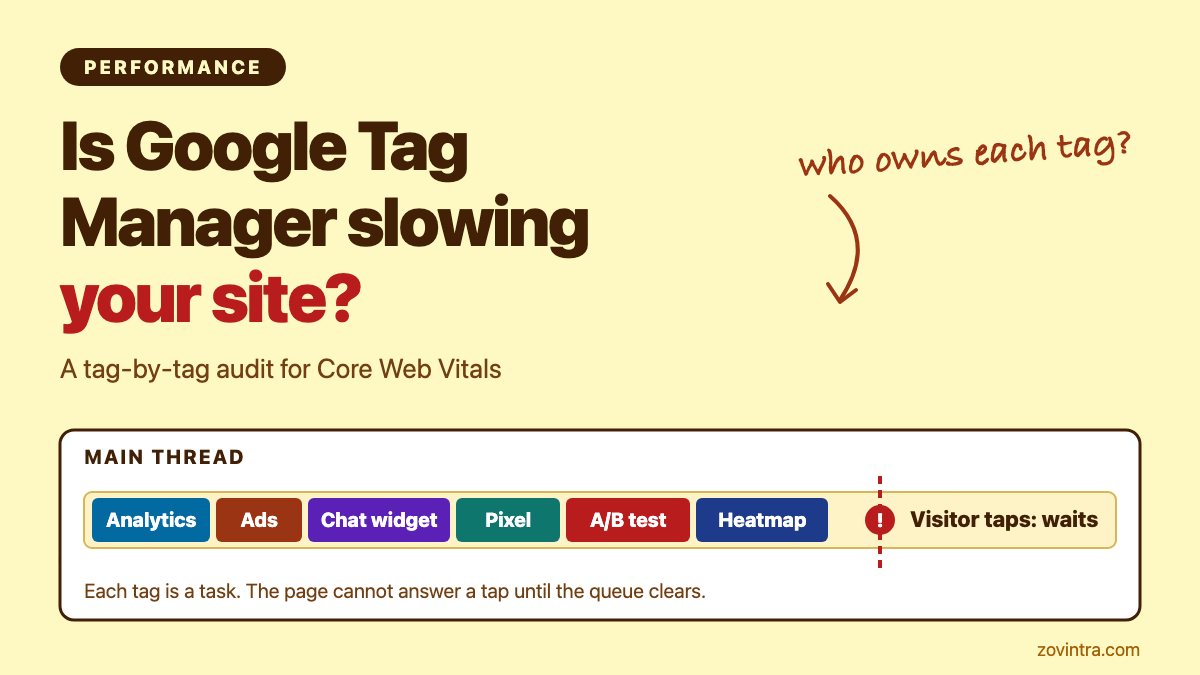
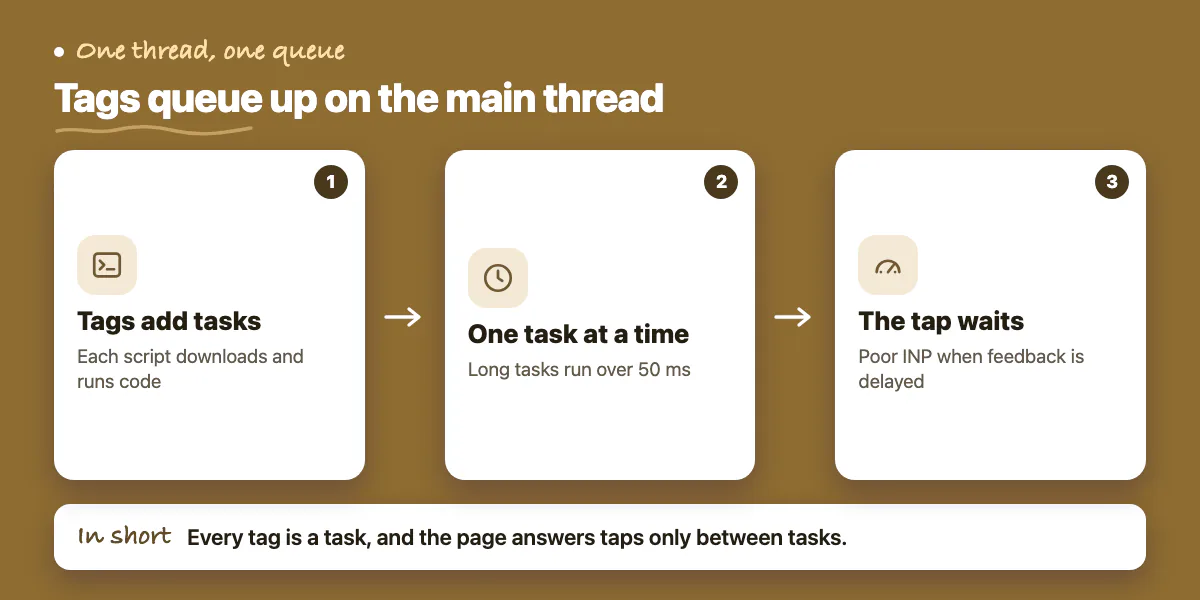
A browser runs your page's JavaScript on one main thread. It can do one task at a time and it runs each task to completion. web.dev defines a long task as any task longer than 50 milliseconds, and says long tasks that delay visible feedback show up as poor Interaction to Next Paint (INP) (web.dev, Optimize long tasks). INP measures how quickly a page responds to taps, clicks and key presses. A good score is 200 ms or less at the 75th percentile of real visits (web.dev, INP).
Tags add tasks. An analytics tag, an ad pixel, a chat widget and a heatmap each download code, run it and often start more requests. Chrome's team tested this on a Next.js example app. They added a Tag Manager container with 18 randomly chosen tags and measured Total Blocking Time (TBT), a lab metric for how long the main thread is blocked. It rose almost 20-fold. That was one local test on one app, not a rule for every site (Chrome, Next.js third-party scripts).
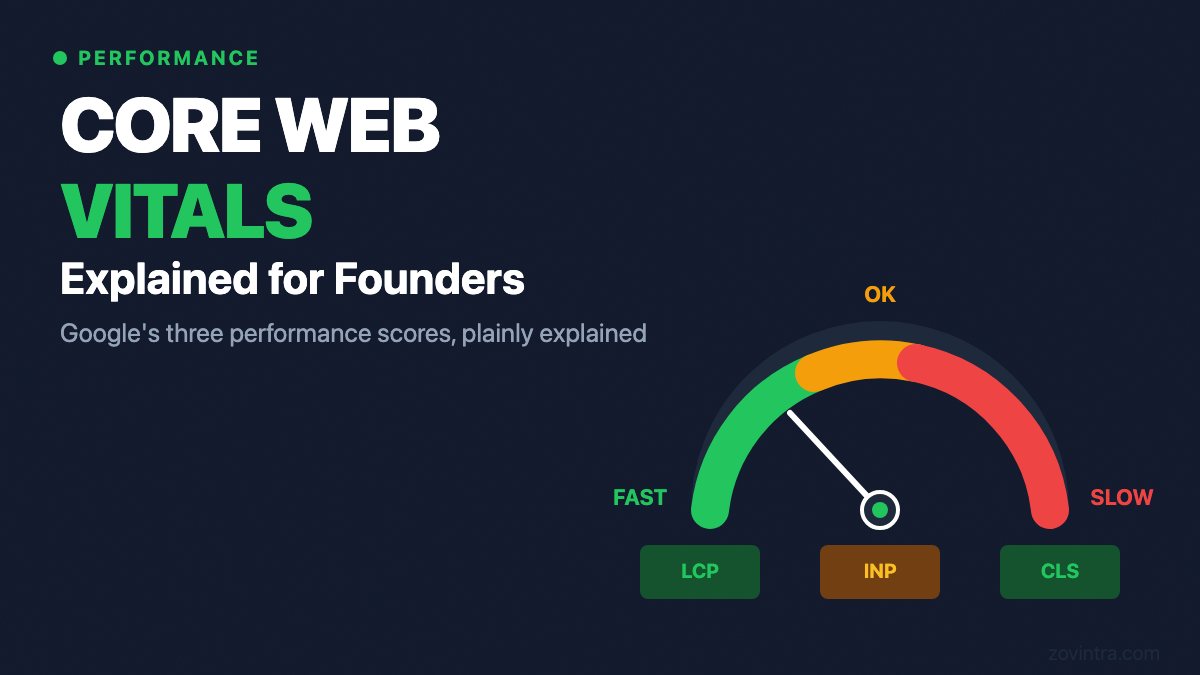
The same Chrome post looked at real-user data for 110,823 sites from December 2023. Next.js sites with more third-party scripts had lower pass rates for INP and Largest Contentful Paint (LCP), which is how long the main content takes to appear. Chrome states this is a correlation, not proof of cause. Treat it as a reason to check, not a verdict.
Speed also touches sales. Shopify's analysis, published on 27 April 2026, covers a 28-day window around January and February 2026. It found conversion tended to be about 3.5 percent lower for every 100 ms slower load, and about 1.5 percent lower for every 32 ms slower INP. Shopify itself says this shows a clear correlation, though not direct causation. It is also data from stores on its platform, so a different kind of site may see something different (Shopify). For a plain-English view of these metrics, see our Core Web Vitals guide for founders.
How do you find which tags cost the most?
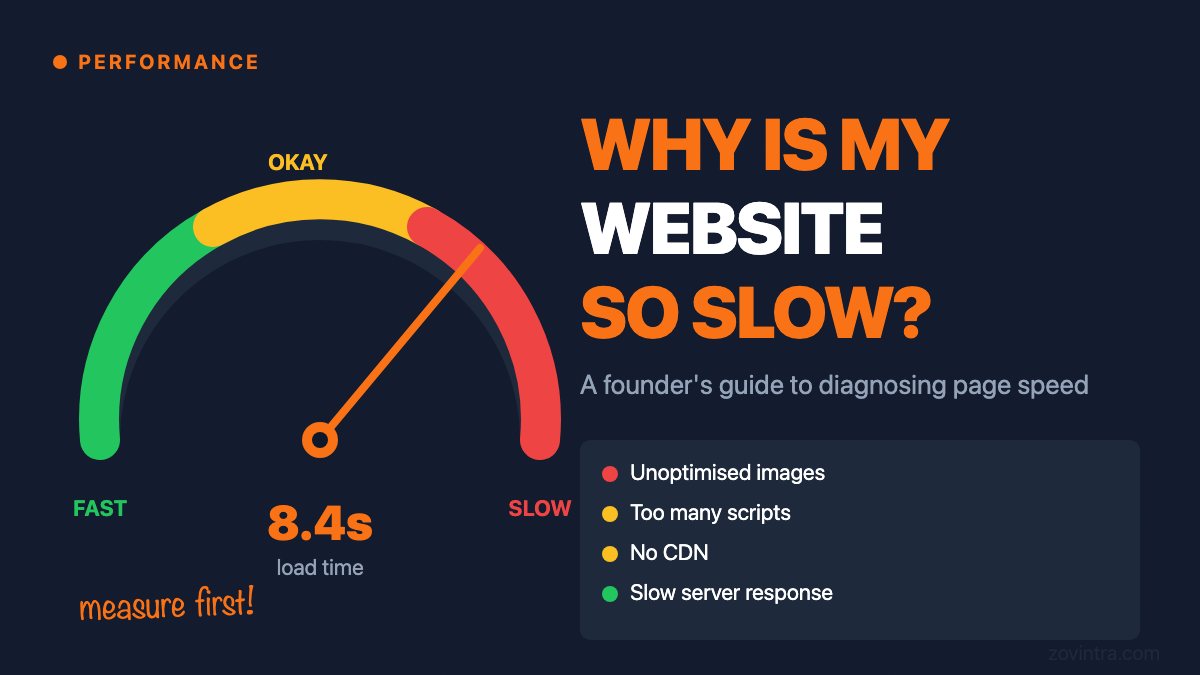
Start with field data, which is measured on real visitors' phones, before lab tools. Field data tells you whether you have a problem and on which pages. Lab data, such as a Lighthouse run, tells you why. Our guide to diagnosing a slow site covers that split in more detail. If your site is new, Search Console's Core Web Vitals report is a free starting point (first week in Search Console).
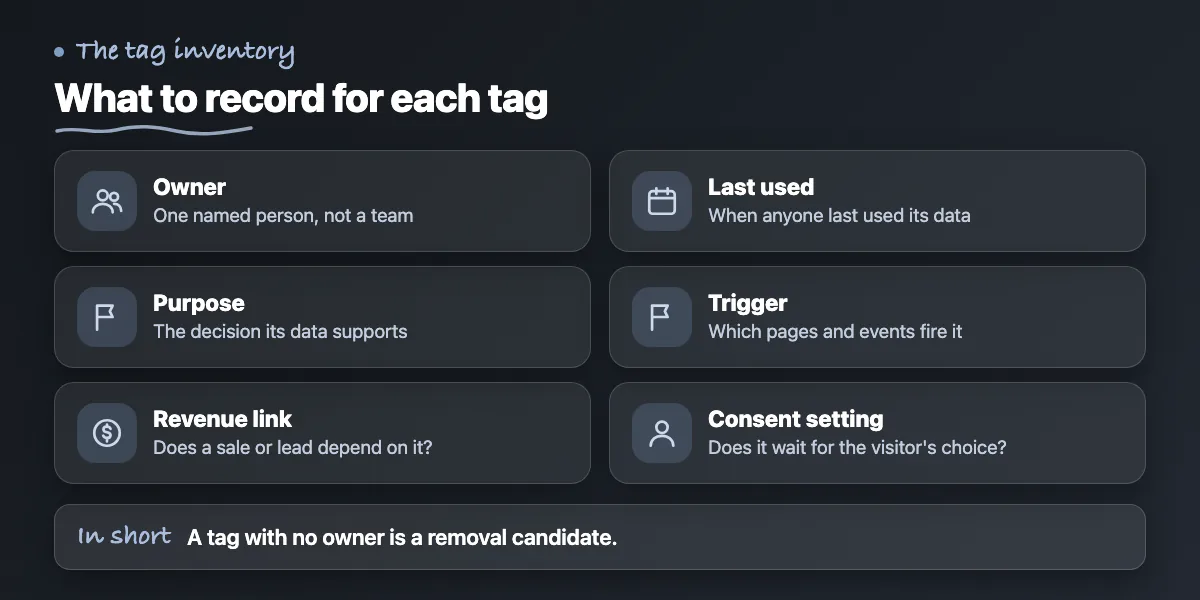
Then open the GTM container and build an inventory. This is general engineering practice, not a rule from one source. One spreadsheet row per tag, with these columns:
- Tag name and what it loads (a vendor script, a custom HTML snippet, or a built-in tag).
- Owner: one named person, not a team. If nobody owns it, it is a removal candidate.
- Purpose and the decision it supports, for example 'tells us which ad campaign produced a sign-up'.
- Revenue link: does a sale, lead or ad budget depend on it? Write yes or no.
- Last time anyone used its data. If the answer is 'a year ago', ask whether to keep it.
- Trigger: which pages and events fire it, and whether it fires on every page.
- Consent setting: whether it waits for the visitor's choice (more on this below).
- Cost in the lab: its share of main-thread time in a performance recording, noted in milliseconds.
Record the cost with the same tool and the same throttled phone settings each time, or the numbers will not compare. Then sort by cost and by value. The tags that are expensive and have no owner go first.
Cut, delay, facade or isolate: which fix fits which tag?
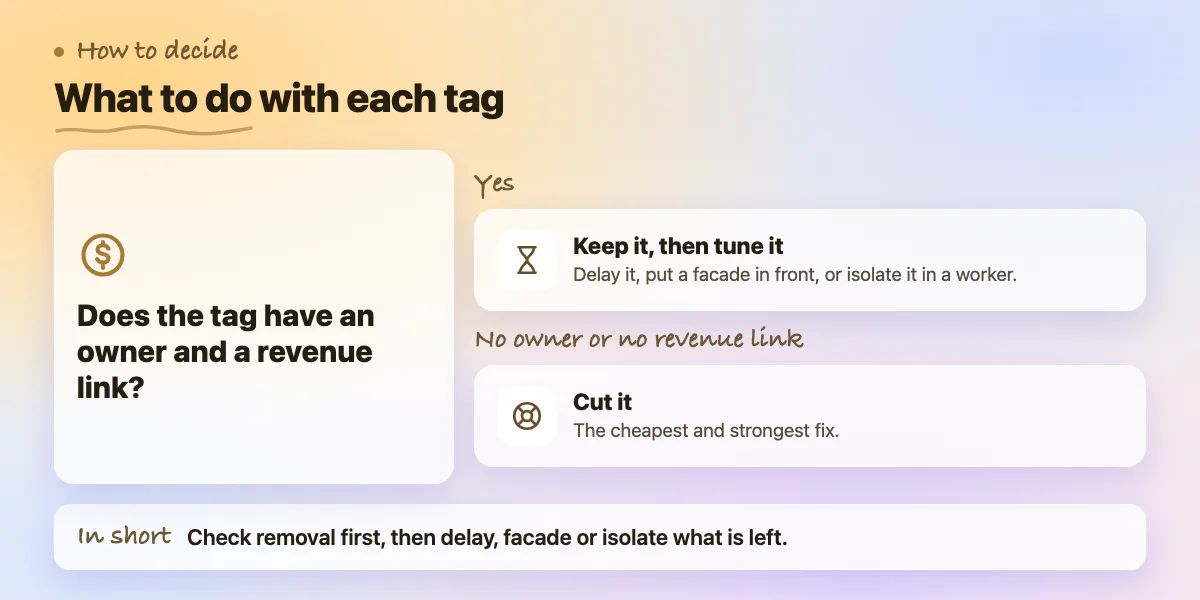
Once the inventory exists, each tag gets one of four treatments. Use this as a decision list.
- Cut it. No owner, no recent use, no revenue link, or duplicate of another tag. This is the cheapest and strongest fix, so check it first. Pixels left over from finished campaigns are a common case.
- Delay it. Keep it, but fire it later. GTM's page view triggers run in this order: Consent Initialization, Initialization, Page View, DOM Ready, Window Loaded. Page View fires as soon as the browser starts loading the page, and Window Loaded fires after the page has fully loaded (Google, trigger types). Moving non-urgent tags, such as a heatmap, from Page View to Window Loaded is one common way to push them later. Test it, because a tag that fires late may miss early visitors.
- Facade it. Show a light placeholder and load the heavy script only when the visitor interacts. A chat widget is a good case: show a plain button and load the real widget on the first click. Next.js already does this for YouTube, whose embed component uses lite-youtube-embed under the hood (Next.js docs).
- Isolate it. Run the script in a web worker, so it stops using the main thread. In Chrome's example, moving the Tag Manager container and its tags to a web worker cut TBT by 92 percent. Chrome also warns this can silently break third-party scripts, and it planned to verify which components work before offering it as an option. Treat this as a careful experiment, not a default.
Chrome's post makes a useful distinction: changing a script's loading strategy only changes when it runs, while a web worker removes its main-thread time. Delaying a tag helps first load, but the tag's code still lands on the main thread later, where it can collide with a visitor's tap.
What changes if your site runs on Next.js?
Next.js provides a GoogleTagManager component in its experimental @next/third-parties package. Its docs, last updated on 1 June 2026, say that by default the component fetches the original inline script after hydration, which is the point when React makes the server-rendered page interactive. The docs call the whole package experimental, so pin your version and read the release notes before upgrading (Next.js docs).
Two practical points follow. First, loading after hydration protects first paint, but it does not make the tags free. Their work still runs on the main thread, so keep auditing INP. Second, if GTM is already on the page, the Next.js docs recommend configuring Google Analytics through GTM rather than adding a second Google Analytics component. Use sendGTMEvent to push events to the data layer from your components, and keep the event names in your inventory so marketing and engineering share one list. We cover other common pitfalls in Next.js App Router pitfalls we see in production.
How do you keep tracking and consent intact while you change load order?
Faster is useless if your numbers go wrong. Before any change, write down what the business must still be able to measure: sign-ups, purchases, ad conversions. After each change, test those events in GTM's preview mode and compare a week of data before and after.
Consent needs separate care. GTM's Consent Initialization trigger exists so that consent settings are applied before other triggers fire, and Google describes it for tags that set or update consent, such as a consent management tag. Do not move it later to save time. Also check the Consent Overview in GTM: tags whose additional consent checks are 'not set' perform no additional consent checks, per Google's help page (Google, consent overview). Whether a tag needs consent is a legal and policy decision for your business, not a performance setting. Our post on GA4 Consent Mode v2 mistakes lists the common errors.
Finish with a before and after report that both teams accept. Keep it to one page:
- Same pages, same device profile and same tool for both runs.
- Field data trend over several weeks, since real-user data moves slowly.
- Lab numbers per tag: main-thread time before and after.
- A tracking check: each key event still fires, with the date tested.
- A decision log: which tags were cut, delayed, put behind a facade or isolated, and who approved each.
The report ends the 'whose fault is it' argument, because it shows costs per tag and the value each tag claims.
When can you skip this audit?
Skip the full audit if your container has only a handful of tags, each has a named owner, and your field data already passes INP and LCP on mobile. In that case a yearly review is enough. Also skip it if the real problem is elsewhere. Large images, a slow server or a heavy front-end framework can dominate a slow page, and no amount of tag work will fix them. Run a lab recording first. If tags make up a small part of the main-thread time, look at the rest of the page instead. And do not remove a tag only because it is slow if a campaign or a legal duty depends on it; delay or isolate it instead.
Want a second pair of eyes on your tags?
If your site has years of tags and no one owns the list, a tag and Core Web Vitals audit gives you an inventory, a cost per tag and a safe order of changes. You can request an audit or contact us.
Common questions
Does Google Tag Manager itself slow down my website?
Tag Manager is a container. The cost comes from what you put inside it: each tag adds scripts, requests and main-thread work. Chrome's team measured an 18-tag container raising Total Blocking Time almost 20-fold in one test, so the number and type of tags matter more than the container.
What is a good INP score and why do tags affect it?
web.dev rates INP as good at 200 ms or less, measured at the 75th percentile of real visits. Tags affect it because their scripts run on the same main thread that handles taps and clicks. When a tag's task is running, the page cannot respond until that task finishes.
Should I move all my tags into a web worker?
Not by default. Chrome's example cut Total Blocking Time by 92 percent, but Chrome also warns that a worker can silently break third-party scripts. Cut unused tags first, delay low-priority ones, and test any worker setup on a copy of the site, checking that every key event still fires.
Sources
- Chrome for Developers, Next.js third-party scripts
- Shopify, store speed and conversion
- Next.js docs, third-party libraries
- web.dev, Interaction to Next Paint
- web.dev, Optimize long tasks
- Google Tag Manager help, trigger types
- Google Tag Manager help, consent overview
Building something similar?
Talk to our engineering team about your architecture, roadmap, and delivery timeline.
Request a Technical Review →
We design, engineer, and deploy high-performance web platforms, mobile applications, and intelligent cloud systems.